Canceling ChatGPT Plus: what people really mean when they search this
If you've found yourself typing "how to cancel ChatGPT subscription” or "how to cancel ChatGPT Plus subscription”, you're usually not looking for a deep explanation of AI. You just want the subscription to stop renewing, you want to avoid another charge, and you want to be sure you did it correctly.
Maybe you signed up during a busy month, used it a lot, and now you're trying to cut recurring costs. Maybe you were testing it for school or work and don't need it right now. Or maybe you simply prefer another tool. Whatever the reason, canceling should be straightforward, but it can feel confusing because the steps depend on where you subscribed (web vs. mobile app) and whether you're logged into the same account you paid with.
This guide walks you through the most common cancellation paths, what to check afterward, and what to do if something doesn't match up. I'll keep it practical and focused on real-life situations.
First, a quick reality check: canceling vs. deleting your account
A lot of people mix these up. Canceling your ChatGPT Plus subscription stops future billing. Deleting your account is a bigger step that removes your account access entirely. If your goal is "stop paying,” you almost always want cancel subscription, not "delete account.”
It also helps to know what "cancel” usually means in subscriptions: you typically keep access until the end of the current billing period, and then it doesn't renew. So if you just paid yesterday, you may still have Plus features for the rest of the month, even after canceling.
Before you cancel, confirm how you subscribed (this matters)
This is the number-one reason people get stuck. The cancellation steps depend on whether you subscribed:
- On the ChatGPT website (paid with a card or payment method on the web)
- In the iOS app (Apple App Store billing)
- In the Android app (Google Play billing)
If you're not sure, check your bank statement or email receipts. Apple receipts usually come from Apple, Google Play receipts come from Google, and web purchases often show up as OpenAI/ChatGPT (wording can vary by region and bank).
If you cancel in the wrong place, nothing happens, and you might think the system "ignored” your cancellation when actually you just didn't cancel the active billing source.
How to cancel ChatGPT Plus subscription on the web (most common)
If you subscribed on a desktop or mobile browser at chatgpt.com, the cancellation is handled inside your ChatGPT account settings.
Open ChatGPT and make sure you're logged into the account that has Plus. This sounds obvious, but many people have more than one login (personal email, work email, Apple sign-in, Google sign-in). If you're in the wrong account, you won't see the right subscription details.
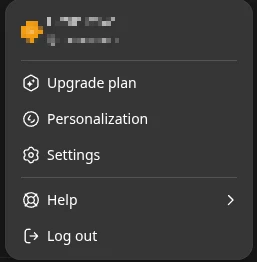
Once you're in the correct account, go to your settings and find the subscription or plan area. Look for something like "Manage my subscription.” You should be taken to a billing page where you can cancel renewal.
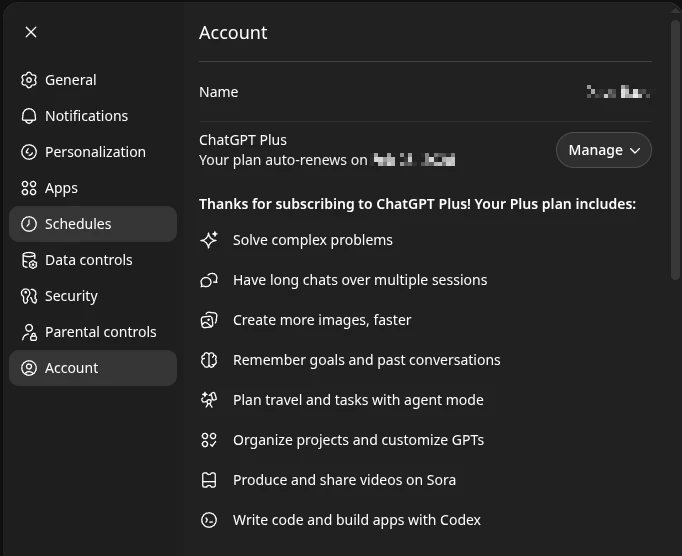
After you cancel, take a moment to confirm you see a status message that indicates the plan will end on a specific date. If you don't see any confirmation, don't assume it worked.
One more practical tip: once you've canceled, save proof. A screenshot of the cancellation confirmation page is usually enough if you ever need to dispute a renewal charge.
How to cancel ChatGPT subscription on iPhone or iPad (Apple App Store)
If you subscribed through the iOS app, Apple controls the subscription. That means canceling inside ChatGPT won't do it, because the billing is managed by your Apple ID.
On iPhone or iPad, open Settings, tap your name (Apple ID), then go to Subscriptions. Find ChatGPT (or the subscription name associated with it) and choose cancel.
If you don't see it there, you might be signed into a different Apple ID than the one used to purchase. This happens a lot in families where someone uses a shared device, or when you have one Apple ID for purchases and another for iCloud.
Also, remember that deleting the ChatGPT app does not cancel the subscription. That's true for most iOS subscriptions, not just ChatGPT.
How to cancel ChatGPT Plus on Android (Google Play)
If you subscribed through the Android app, you'll cancel it through Google Play.
Open Google Play, tap your profile icon, then go to Payments & subscriptions, then Subscriptions. Find ChatGPT and cancel.
If it's not there, check whether you have multiple Google accounts on your phone. Subscriptions are tied to the Google account used at purchase time, so you may need to switch accounts in Play Store to find the active subscription.
Exactly one checklist to make sure you're done
Here's a simple way to confirm you canceled the correct thing and won't get surprised later:
- Check your subscription location (web, Apple, or Google) based on your receipt or bank statement.
- Cancel in that same place, not somewhere else.
- Look for a confirmation message that includes an end date or "will not renew.”
- Save proof (screenshot or email confirmation).
- Set a reminder for one day before the renewal date to verify you weren't charged again.
What happens after you cancel (and what doesn't happen)
After you cancel, you typically keep Plus features until your billing period ends. So if you cancel today but your renewal date is two weeks away, you'll still have the Plus plan for those two weeks.
What doesn't happen automatically is a refund for unused time. Some services offer partial refunds, but many subscriptions are "pay for the month, use it for the month.” If you need a refund because you were charged unexpectedly or you forgot to cancel a trial, it's worth contacting support, but don't assume it's guaranteed.
Also, canceling Plus does not delete your chat history by default. If privacy is your concern, review your account settings separately.
Common problems (and how to solve them without wasting an afternoon)
"I canceled, but it still says Plus”
This is often just timing. Your plan can remain active until the end of the billing cycle. Look for the renewal date or the end date in your subscription status.
If the date has passed and it still shows Plus, log out and log back in, or try a different browser. Sometimes the display lags behind the actual billing status.
"I can't find the cancel button”
When people can't find the cancel option, it's usually because they're in the wrong account or because the subscription is managed by Apple or Google.
Try this quick approach: search your email for "receipt” and "ChatGPT” or "OpenAI.” The receipt will usually reveal the billing source.
"I used Apple/Google, but I don't see it in Subscriptions”
This typically means you're looking at the wrong Apple ID or Google account. Switch accounts and check again.
If you still can't find it, look for the original purchase email. Apple and Google receipts contain links or details that can help you trace which account was used.
"I'm being charged but I don't have access”
This one is frustrating, but it's fixable. It usually happens when you subscribed with one login method (for example, "Sign in with Apple”) and later start using another (like Google sign-in) using the same email address or a different email.
Try logging in using every method you might have used: Google, Apple, Microsoft, email/password. Once you find the account that shows Plus, you'll know where the subscription is attached.
If you're still stuck, gather your receipts and contact support. Having transaction IDs speeds things up.
If you're canceling because of cost, consider changing how you use AI instead
A lot of people cancel because they don't use it enough to justify the monthly fee. That's completely reasonable. But it doesn't always mean you need to stop using AI tools-sometimes you just need a setup that matches your actual routine.
For example, if you mostly use AI for quick writing help, summarizing long emails, or brainstorming weekend plans, you might prefer a platform that lets you switch between models and pay attention to quality differences. Some people like ChatGPT for one type of task and prefer Claude for tone and longer writing, or Mistral for speed. Others want image generation too.
That's where a platform like Claila can be a practical alternative. Instead of committing to a single model, you can use multiple well-known options in one place-ChatGPT, Claude, Mistral, and Grok, plus AI image generation-so you can pick the best tool for the moment. It's a bit like having more than one search engine or more than one streaming service trial: you quickly learn which one fits your day-to-day needs.
And if you're canceling because you only needed AI temporarily (say, for job applications last month), using a flexible platform later can make it easier to jump back in without feeling locked into one approach.
A note on refunds and consumer rights
If you're canceling because you were charged unexpectedly, you may be able to request a refund depending on how you subscribed. Apple and Google have their own refund request flows. Web subscriptions usually go through the service's support channels.
If you're in the European Union, you may have additional consumer protections for online purchases in certain situations. The European Commission provides an overview of consumer rights for online and distance purchases, including withdrawal rights and exceptions, which can be helpful context when you're trying to understand what you're entitled to and what you're not: https://commission.europa.eu/live-work-travel-eu/consumer-rights-and-complaints/consumer-rights_en
That said, refunds for subscriptions can be case-specific. The most reliable move is to cancel first (to stop future charges), then pursue any refund request with your receipt details in hand.
How to avoid accidental re-subscriptions later
Canceling is one thing; staying canceled is another. It's easy to forget you have one-tap upgrades inside apps, or to click a button that starts a subscription again.
A few habits help:
Keep your receipts folder organized (even just a "Subscriptions” label in Gmail). If you ever wonder "am I still paying for that?”, you'll find the answer quickly.
If you share devices with family members, consider using separate Apple IDs or Google accounts for purchases. Shared devices are one of the biggest sources of "I didn't mean to subscribe” confusion.
And if you're using AI for work, consider whether you want your subscription tied to a personal email or a work email. Switching jobs or losing access to a work inbox can make it harder to manage subscriptions later.
When canceling is the right move (and when it isn't)
If you're not using Plus features regularly, canceling is usually the smartest option. You can always re-subscribe later when you actually need it, like during a busy project, exam season, or a job hunt.
If you use it daily and it saves you real time-writing emails faster, planning trips, summarizing meeting notes, or helping with learning-then the better move may be to keep it but get more value from it. People often underuse AI because they only ask it one kind of question. The moment you start using it like a helper across your day, it can feel more "worth it.”
Still, you shouldn't pay for something out of habit. Subscriptions are supposed to earn their place in your budget.
Canceling your ChatGPT subscription doesn't have to be stressful. Once you identify where you subscribed and cancel in the right place, you're basically done. After that, you can decide what you actually want from AI-whether that's a single tool you use constantly, or a more flexible setup like Claila that lets you choose the best model for the job without overthinking it.